Essential Prerequisites for Setting Up Virtual Appointments

To schedule virtual therapy, select the client and service, designate online video delivery, confirm the telehealth application, and finalize the booking so automated calendar invites are generated. Before you or your clients jump into the calendar to book a session, getting your underlying platform settings in order saves countless hours of troubleshooting later. In modern practice management, telehealth isn’t just an isolated video call—it’s an interconnected workflow tied directly to your client records, billing rules, and service catalog.
To ensure your virtual appointments launch without friction, your practice management platform must have the right operational foundation. Clinicians using dedicated systems like Practice Better must ensure their subscription tier includes integrated telehealth functionality. While basic entry-level or free tiers (such as the Sprout plan) often restrict live video features, standard tiers—including Starter, Professional, Plus, and Team plans—provide built-in, HIPAA-compliant video capabilities.
Beyond platform tiers, configuring your core offerings is critical. You must establish distinct bookable services within your portal so clients know exactly what they are selecting—whether that involves standard hourly sessions, specialized consultations, or bundled telehealth care packages. Each service must be tied to an active client profile and mapped to your preferred video delivery method.
Prerequisites to Schedule Virtual Therapy Smoothly
Setting up your digital practice requires establishing global defaults while maintaining flexibility for specific appointment types. In your administrative settings (typically under Telehealth & Messaging), you can select your default video application account-wide. This ensures that every time an online session is booked, the system automatically assigns a secure room without manual intervention.
However, clinical needs vary. While your account default might handle standard one-on-one sessions seamlessly, certain specialized appointments might require custom handling. Practice management platforms allow a per-service override within individual service settings, letting you specify whether a given appointment uses native built-in telehealth or an integrated third-party platform.
| Feature / Setting | Built-In Telehealth Platform | Integrated Group Video (e.g., Zoom) |
|---|---|---|
| Supported Session Format | One-on-one sessions only | One-on-one and multi-participant groups |
| Plan Requirements | Starter, Professional, Plus, Team plans | Professional plan or higher |
| Account Requirements | Included with platform subscription | Requires linked, paid third-party account |
| Client Portal Activation | Mandatory for secure entry | Recommended, but join link can be direct |
| Session Overrides | Configured as account-wide default | Enabled via per-service booking options |
Taking ten minutes to verify these foundational settings prevents broken links and eliminates the frantic pre-session emails that happen when a video room fails to generate.
Step-by-Step Guide: How to Schedule Virtual Therapy Sessions
Once your service options and video settings are active, booking an appointment is straightforward. Whether initiated by the practitioner or self-scheduled by the client, the administrative steps follow a clean, structured path designed to minimize errors.
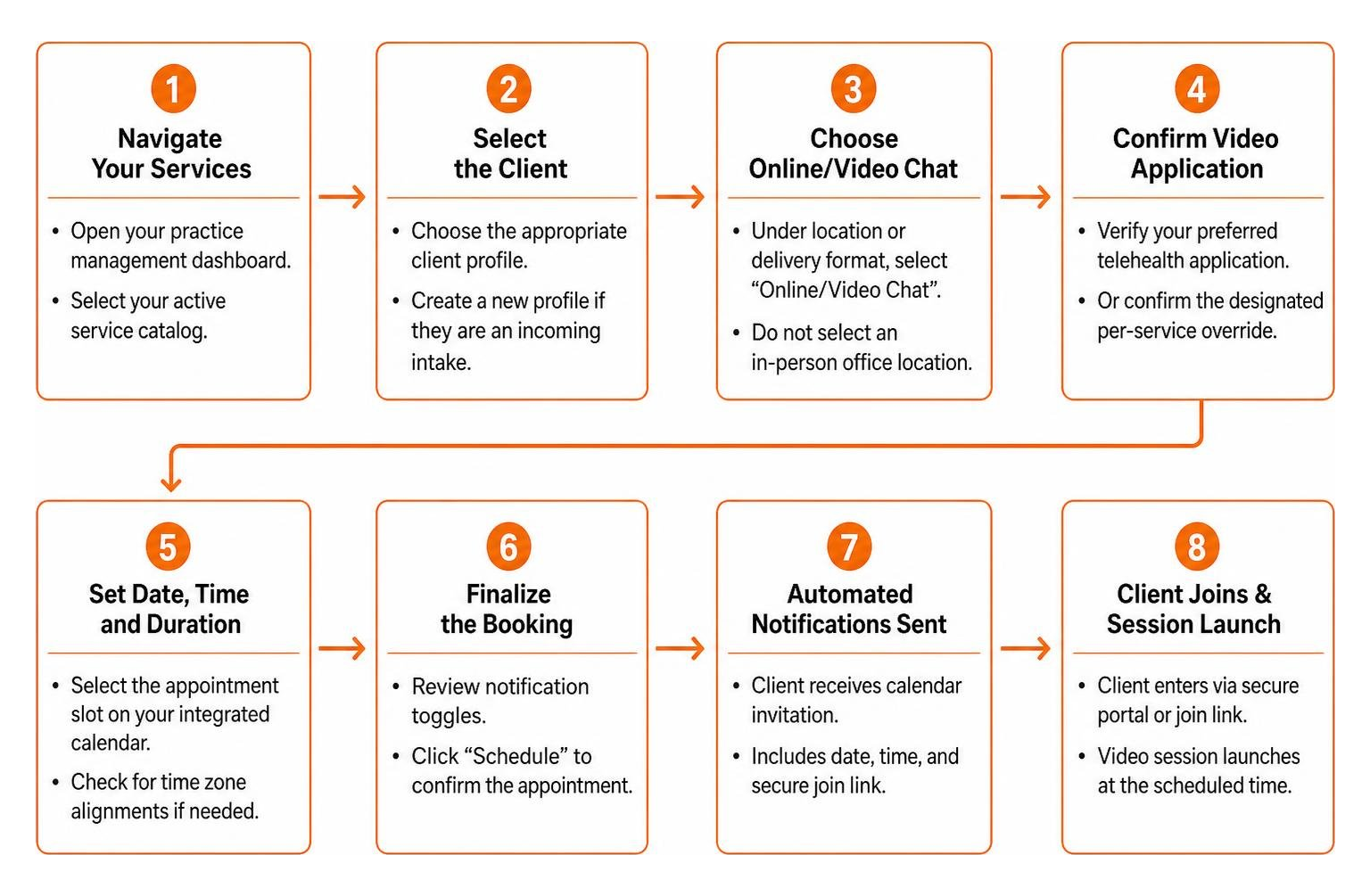
When booking internally on behalf of a patient, follow these standard operational steps:
- Navigate to Your Services: Open your practice management dashboard and select your active service catalog.
- Select the Client: Choose the appropriate client profile from your active roster or create a new profile if they are an incoming intake.
- Choose Online/Video Chat: Under the location or delivery format options, explicitly select "Online/Video Chat" rather than an in-person office location.
- Confirm Video Application: Verify that the system reflects your preferred telehealth application (or the designated per-service override).
- Set Date, Time, and Duration: Select the appointment slot on your integrated calendar, checking for time zone alignments if you or your client are in different regions.
- Finalize the Booking: Review the automated notification toggles and click "Schedule."
For clinicians wanting a deeper technical look at standard platform configurations, reviewing established guidelines on creating a telehealth appointment can help optimize your back-end administrative routines.
How to Schedule Virtual Therapy for Individual vs. Family Clients
Different clinical formats require slightly different administrative considerations. When coordinating standard individual therapy, native one-on-one telehealth tools work right out of the box. These appointments link directly to a single client profile, generate an exclusive encrypted video room, and require authentication through that specific client's portal dashboard.
In contrast, setting up family therapy often involves multiple individuals joining from separate physical locations or devices. Because built-in telehealth tools on platforms like Practice Better are strictly designed for one-on-one interactions, multi-party sessions require linking an external video integration, such as a paid Zoom account on a Professional tier or higher. When scheduling family sessions:
- Ensure the service is configured with the group video override rather than standard one-on-one telehealth.
- Verify that all participating family members receive calendar invitations containing the correct multi-party link.
- Adjust session durations appropriately to allow for multi-person intake, transitions, and collaborative clinical discussions.
Post-Booking Management: Confirmations, Cancellations, and AI Charting
What happens after you hit "Schedule" is just as important as the booking itself. An effective virtual therapy workflow automates administrative communication so neither clinician nor client is left wondering where to go on session day.

Immediately upon booking, the system issues an automated confirmation email to the client. This message includes essential appointment details, direct instructions for joining, and an attached .ics calendar file so the patient can add the appointment to Google Calendar, Apple Calendar, or Outlook with a single click. Furthermore, practitioners can set up automated reminder notifications—sent via email or SMS 24 to 48 hours prior—to drastically reduce no-show rates.
Managing schedule adjustments is equally streamlined:
- Rescheduling: When a practitioner updates an appointment time directly inside the portal, the original video session link is preserved and updated automatically. Both parties receive refreshed calendar invites without needing a new URL.
- Cancellations: If a session is cancelled by either party, the active video link is permanently voided to prevent unauthorized access. If the client decides to rebook later, the system will generate a fresh, secure link for the new time slot.
To further reduce administrative overhead, modern platforms allow clinicians to integrate an AI Charting Assistant. With appropriate client consent, this tool securely records audio, generates real-time transcripts, and creates structured clinical summaries. Instead of spending 15 minutes typing notes between appointments, clinicians can review an auto-generated draft, make clinical refinements, and finalize documentation in seconds.
Technical and System Requirements for Seamless Video Calls
Technical glitches during a therapy session disrupt clinical rapport. Fortunately, ensuring video and audio stability requires only basic preparation and adherence to modern digital standards.

To maintain stable, encrypted video calls, both clinicians and clients should meet these core technical requirements:
- Supported Web Browsers: Always use the latest version of Google Chrome, Mozilla Firefox, Apple Safari, or Microsoft Edge. Legacy browsers (such as Internet Explorer) lack modern WebRTC protocols and will fail to load secure video streams.
- Hardware & Peripherals: A functional webcam, stable microphone, and headphones (to prevent audio feedback and protect privacy) are essential.
- Media Permissions: When launching the session for the first time, browsers will prompt users to allow camera and microphone access. Ensure these permissions are set to "Allow."
- Client Portal Authentication: Clients must activate their client portal account and log in before joining a native video session, ensuring compliance with privacy regulations.
Pro-Tip: Before seeing your first official client on a new device or network, set up a "test client" profile in your system. Running a mock appointment allows you to test camera framing, audio clarity, and browser permissions without clinical pressure.
Frequently Asked Questions About Virtual Therapy Scheduling
Navigating online practice management often brings up specific operational questions. Below are answers to common questions clinicians and clients face, with further details available on our frequently asked questions page.
Do clients need to create a portal account to join their video session?
Yes. For native, built-in telehealth sessions, clients must activate their client portal account and log in prior to joining. This requirement ensures end-to-end security and verifies patient identity under healthcare privacy guidelines. Clients can easily complete setup via the invitation link sent to their email during initial intake.
What happens to the session link if an appointment is rescheduled or canceled?
If an appointment is rescheduled from within the practitioner portal, the original session link remains valid and automatically syncs to the new date and time. However, if an appointment is cancelled, the existing link is permanently deactivated. Scheduling a new appointment will generate a brand-new, secure video link.
Can virtual therapy sessions accommodate group or multi-party meetings?
Standard built-in telehealth is optimized strictly for one-on-one clinical interactions. If you need to host group therapy, couples counseling, or family sessions with participants connecting from multiple devices, you must integrate a third-party platform like Zoom (which requires a Professional plan or higher and an active paid Zoom subscription).
Conclusion
Scheduling virtual therapy should never feel like an administrative maze. By establishing clear default settings, leveraging automated confirmations, and ensuring system compatibility, clinicians and clients alike can focus entirely on what matters most: meaningful therapeutic progress.
At All Points North Telehealth Therapy, we provide comprehensive, HIPAA-compliant mental health services delivered by licensed master’s and doctoral-level clinicians. With coordinated care, robust clinical oversight, and seamless access to our broader treatment network, getting support has never been easier. When you are ready to begin, schedule virtual therapy with All Points North Telehealth Therapy and experience compassionate, evidence-based care tailored to your needs.